














메시지

This is the product's own frame. Your conversations appear here once you have an account.

Get started now
알림

This is the product's own frame. Alerts about your business appear here once you have an account.

한국어
Thursday you wrote once. All week you showed up everywhere.

One post.
A week of momentum.

Turn one true business moment into a week of channel-ready posts. Choose the destinations, shape each version, set the timing, and let FocalShift carry the rhythm while you run the business behind it.

Schedule your first weekFree to start. Nothing publishes without your approval.
Publishing weekSpring storefront story
9 posts scheduled
MON 14
The idea behind the spring shelfLinkedIn
TUE 15
Small-business owner preparing a storefront campaignBefore the doors openFacebook
WED 16
20-second shelf resetTikTok
THU 17
Five details customers missInstagram
FRI 18
What changed this week?X
SAT 19
The full shop storyYouTube
SUN 20
What the week taught usSubstack
Instagram post published on time

Thursday · 8:12 · One true moment

Write one post on Thursday. It shows up everywhere, all week.

Write the story once in Compose. Maven reshapes it for every place it is going, and the whole week is queued before your coffee is cold.

Build your first publishing week

Free plan. No card. Nothing publishes without your approval.

The story stays true. The post learns the room.

Small-business owner preparing a colorful shop display
Source moment · Thursday 8:12 AM

The morning the spring shelf came together.

One honest moment, one business reason, and enough real detail to become more than the same caption everywhere.

INSTAGRAM · 10:30IG

Five frames. One storefront story.

A square crop and a visual sequence that earns the swipe.

TIKTOK · 12:15TT

The 20-second shelf reset.

Vertical framing, a fast hook, and the reveal up front.

LINKEDIN · 8:45IN

What a product display taught me about focus.

The business lesson leads; the promotion earns its place.

X · 4:20X

We changed one shelf. Customers noticed five things.

A concise observation that invites the conversation.

Maven adds this one: the week’s story is one piece of writing — not one piece of writing per place you show up.

작성

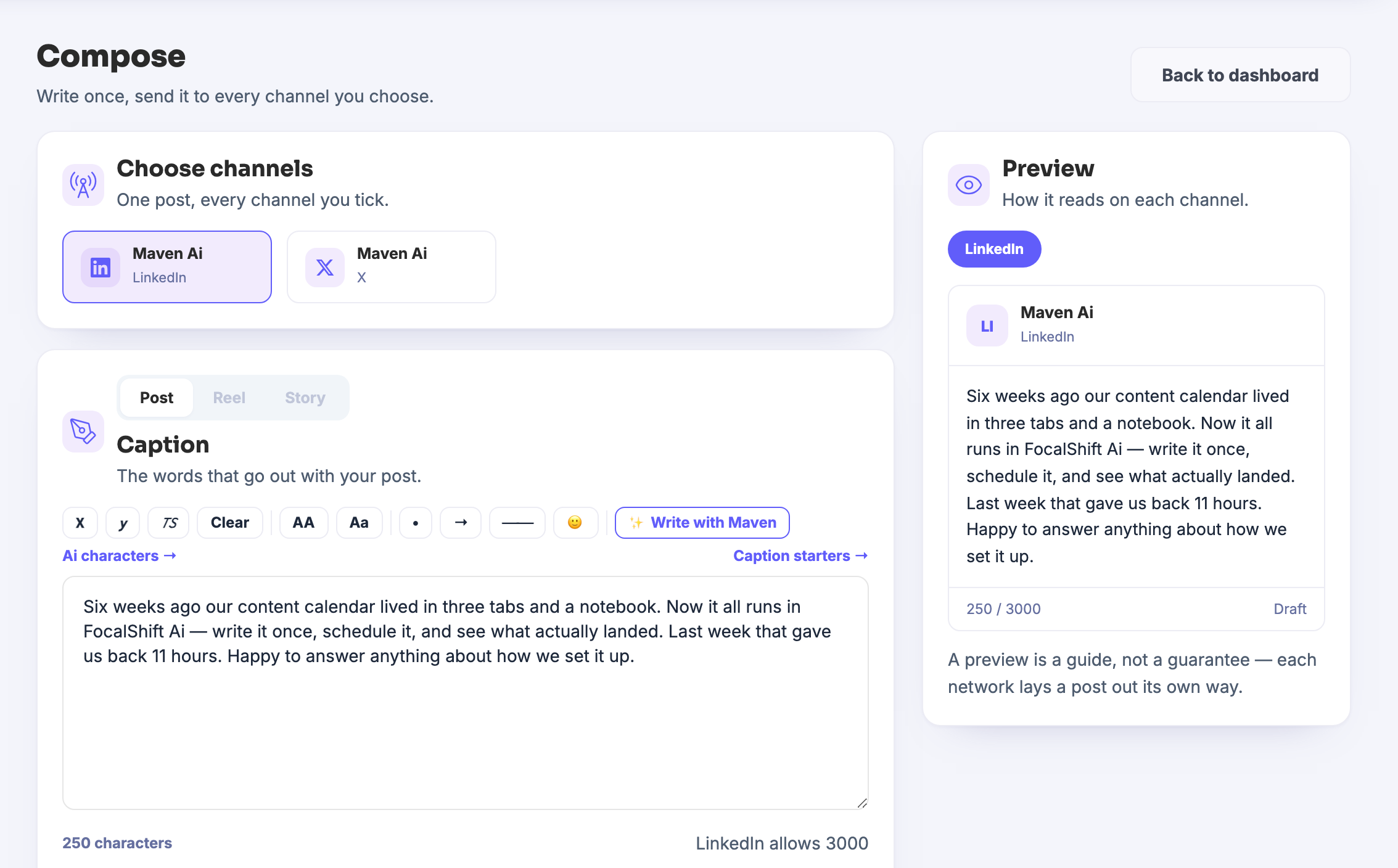
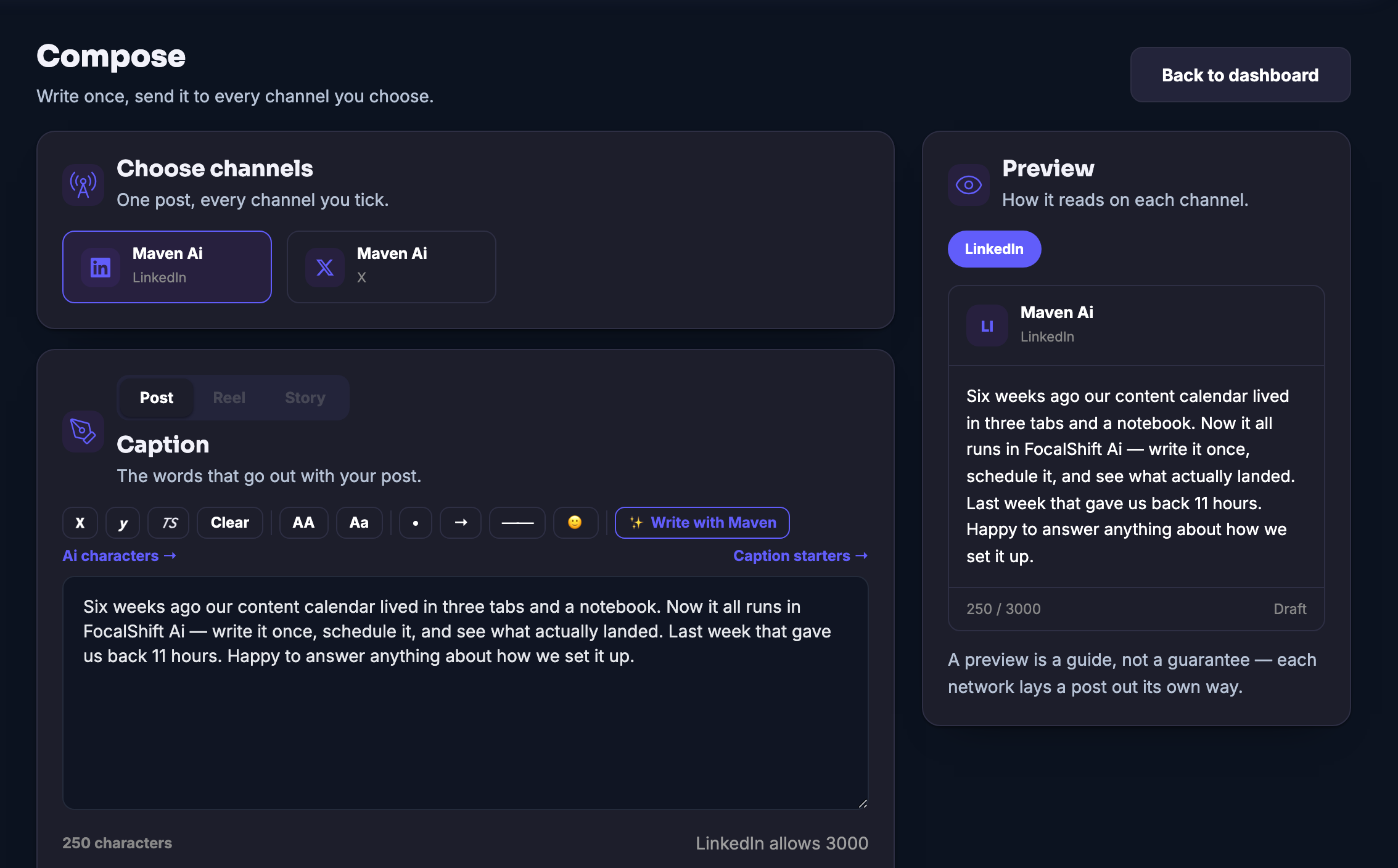
One composer for everywhere you post: write the caption once, tick the channels you choose, and each one gets the shape people expect there.

One post, every channel you tickThe channels connected to your workspace sit at the top of the composer. Write the caption once, tick the ones this post is for, and it goes out to what you ticked — the idea, the offer and the call to action stay together while each place gets its own telling.
You see how it reads before it goesThe preview fills as you type, one channel at a time, with that channel’s own length limit against your words. And the product is honest about it in writing: a preview is a guide, not a guarantee — each network lays a post out its own way.
The blank box is never where you startA post, a reel or a story; caption starters when you have nothing yet; a hashtag row; and a Write with Maven control that drafts the caption with you — so the cost of showing up is deciding what happened this week, not writing it four different ways.
Read more about Compose

The post was never the hard part. The hard part is that there are four of them, and they are all the same post.

Something worth telling happens maybe once a week. What stops it being told is not the writing — it is the rewriting: the same news, re-shaped by hand for every place your business shows up, until posting becomes an afternoon and the afternoon does not happen.

Compose is the desk where that collapses back into one job. Your connected channels sit at the top; you write the caption once, in your own voice, and tick where it should go. The idea, the offer and the call to action travel together — what changes per channel is the telling, which is exactly the part you did not want to do by hand.

You are never sending blind. As you type, the preview shows your words the way a chosen channel will carry them, against that channel’s own length limit — and the screen says plainly that a preview is a guide, not a guarantee, because each network lays a post out its own way. Choose a post, a reel or a story; add the hashtag row; done.

And when the box is blank, Maven sits in the composer with you: caption starters for the empty morning, and a Write with Maven control that drafts from what you give it. You still say yes to every word — it is your name on the post.

What it actually does

  • One caption, written once, sent to the channels you tick
  • A live per-channel preview with that channel’s own length limit as you type
  • Post, reel and story shapes, caption starters, a hashtag row and a Write with Maven draft control

What that changes for you

  • Showing up everywhere costs one sitting, not one per channel
  • Nothing goes out reading like a copy-paste of somewhere else
  • A blank caption box stops being the reason this week went untold

You come away with one story, told properly in every place you show up.

A look inside Compose

Mon
Tue
Wed
Thu
free
Fri
Sat
Sun
Approve once
Stay in control

The week, decided in one sitting

Schedule the rhythm. Keep the freedom.

Scheduled Posts is the week laid out, one chip per piece, each waiting on the same tick. Approve once and the queue runs itself. See the gap before your audience does: Thursday is open, so drop the lifted post on it and the week is whole.

The story stays true. The post learns the room.

Compose — platform screenshots

Real screens from the product. Open any one full size, or switch the set to light or dark.
닫기
The Compose screen, headed Compose over the line “Write once, send it to every channel you choose”, with a back-to-dashboard control on the far right and a caption already written. A Choose channels card sits at the top and lists the workspace’s connected accounts as two tiles, each carrying the account name beside the mark of the network it posts to, the first of them ticked and outlined. Beneath it the caption card carries post, reel and story tabs, a row of small formatting controls, a Write with Maven control, links to Ai characters and to caption starters, and the written caption itself in a tall box — a running character count under one corner and the ticked channel’s own allowance under the other. On the right, a panel headed Preview under the line “How it reads on each channel” carries one tab naming the ticked channel and repeats the same words as a post from that account, with a length reading and a draft state along its foot and the screen’s own sentence that a preview is a guide, not a guarantee, because each network lays a post out its own way.The Compose screen, headed Compose over the line “Write once, send it to every channel you choose”, with a back-to-dashboard control on the far right and a caption already written. A Choose channels card sits at the top and lists the workspace’s connected accounts as two tiles, each carrying the account name beside the mark of the network it posts to, the first of them ticked and outlined. Beneath it the caption card carries post, reel and story tabs, a row of small formatting controls, a Write with Maven control, links to Ai characters and to caption starters, and the written caption itself in a tall box — a running character count under one corner and the ticked channel’s own allowance under the other. On the right, a panel headed Preview under the line “How it reads on each channel” carries one tab naming the ticked channel and repeats the same words as a post from that account, with a length reading and a draft state along its foot and the screen’s own sentence that a preview is a guide, not a guarantee, because each network lays a post out its own way.

작성

닫기
The Compose screen, headed Compose over the line “Write once, send it to every channel you choose”, with a back-to-dashboard control on the far right and a caption already written. A Choose channels card sits at the top and lists the workspace’s connected accounts as two tiles, each carrying the account name beside the mark of the network it posts to, the first of them ticked and outlined. Beneath it the caption card carries post, reel and story tabs, a row of small formatting controls, a Write with Maven control, links to Ai characters and to caption starters, and the written caption itself in a tall box — a running character count under one corner and the ticked channel’s own allowance under the other. On the right, a panel headed Preview under the line “How it reads on each channel” carries one tab naming the ticked channel and repeats the same words as a post from that account, with a length reading and a draft state along its foot and the screen’s own sentence that a preview is a guide, not a guarantee, because each network lays a post out its own way.The Compose screen, headed Compose over the line “Write once, send it to every channel you choose”, with a back-to-dashboard control on the far right and a caption already written. A Choose channels card sits at the top and lists the workspace’s connected accounts as two tiles, each carrying the account name beside the mark of the network it posts to, the first of them ticked and outlined. Beneath it the caption card carries post, reel and story tabs, a row of small formatting controls, a Write with Maven control, links to Ai characters and to caption starters, and the written caption itself in a tall box — a running character count under one corner and the ticked channel’s own allowance under the other. On the right, a panel headed Preview under the line “How it reads on each channel” carries one tab naming the ticked channel and repeats the same words as a post from that account, with a length reading and a draft state along its foot and the screen’s own sentence that a preview is a guide, not a guarantee, because each network lays a post out its own way.

A look inside Compose

Stills from the product, one after the next.

The Compose screen, headed Compose over the line “Write once, send it to every channel you choose”, with a back-to-dashboard control on the far right and a caption already written. A Choose channels card sits at the top and lists the workspace’s connected accounts as two tiles, each carrying the account name beside the mark of the network it posts to, the first of them ticked and outlined. Beneath it the caption card carries post, reel and story tabs, a row of small formatting controls, a Write with Maven control, links to Ai characters and to caption starters, and the written caption itself in a tall box — a running character count under one corner and the ticked channel’s own allowance under the other. On the right, a panel headed Preview under the line “How it reads on each channel” carries one tab naming the ticked channel and repeats the same words as a post from that account, with a length reading and a draft state along its foot and the screen’s own sentence that a preview is a guide, not a guarantee, because each network lays a post out its own way.The Compose screen, headed Compose over the line “Write once, send it to every channel you choose”, with a back-to-dashboard control on the far right and a caption already written. A Choose channels card sits at the top and lists the workspace’s connected accounts as two tiles, each carrying the account name beside the mark of the network it posts to, the first of them ticked and outlined. Beneath it the caption card carries post, reel and story tabs, a row of small formatting controls, a Write with Maven control, links to Ai characters and to caption starters, and the written caption itself in a tall box — a running character count under one corner and the ticked channel’s own allowance under the other. On the right, a panel headed Preview under the line “How it reads on each channel” carries one tab naming the ticked channel and repeats the same words as a post from that account, with a length reading and a draft state along its foot and the screen’s own sentence that a preview is a guide, not a guarantee, because each network lays a post out its own way.

Campaigns — platform screenshots

Real screens from the product. Open any one full size, or switch the set to light or dark.
닫기
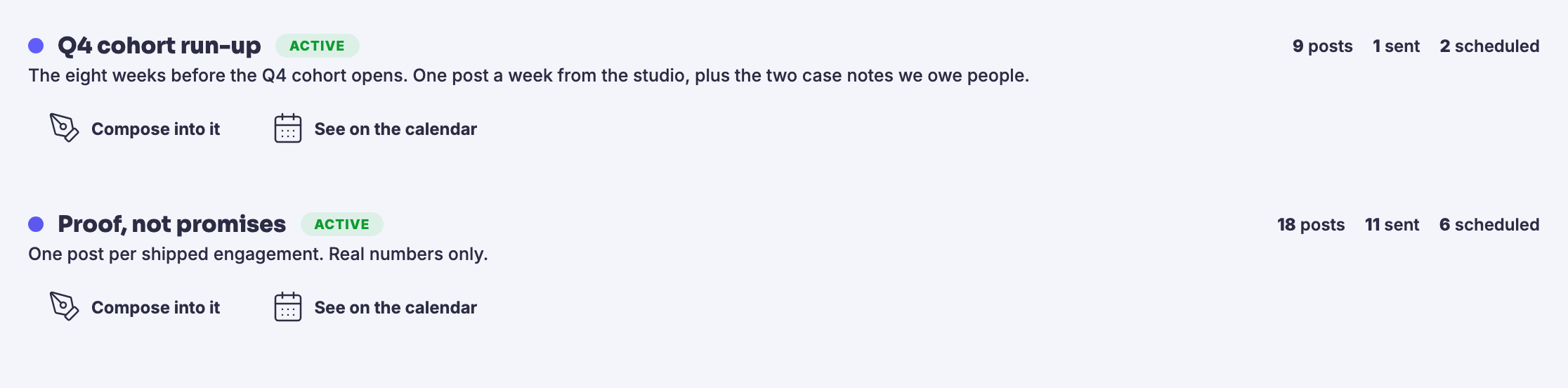
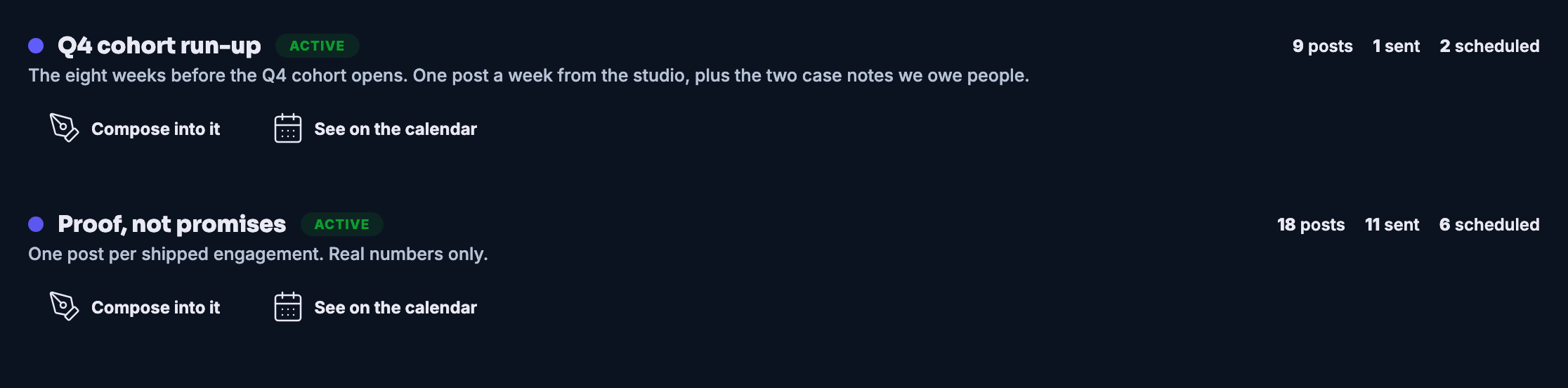
Two named campaigns on the Campaigns screen. Each campaign is marked active and carries a one-line brief of what its push is for, its running counts of posts written, sent and scheduled, and controls to compose into it or see it on the calendar. Both are mid-run, with sends already out and more still scheduled, one further along than the other.Two named campaigns on the Campaigns screen. Each campaign is marked active and carries a one-line brief of what its push is for, its running counts of posts written, sent and scheduled, and controls to compose into it or see it on the calendar. Both are mid-run, with sends already out and more still scheduled, one further along than the other.

캠페인

닫기
Two named campaigns on the Campaigns screen. Each campaign is marked active and carries a one-line brief of what its push is for, its running counts of posts written, sent and scheduled, and controls to compose into it or see it on the calendar. Both are mid-run, with sends already out and more still scheduled, one further along than the other.Two named campaigns on the Campaigns screen. Each campaign is marked active and carries a one-line brief of what its push is for, its running counts of posts written, sent and scheduled, and controls to compose into it or see it on the calendar. Both are mid-run, with sends already out and more still scheduled, one further along than the other.

A look inside Campaigns

Stills from the product, one after the next.

Two named campaigns on the Campaigns screen. Each campaign is marked active and carries a one-line brief of what its push is for, its running counts of posts written, sent and scheduled, and controls to compose into it or see it on the calendar. Both are mid-run, with sends already out and more still scheduled, one further along than the other.Two named campaigns on the Campaigns screen. Each campaign is marked active and carries a one-line brief of what its push is for, its running counts of posts written, sent and scheduled, and controls to compose into it or see it on the calendar. Both are mid-run, with sends already out and more still scheduled, one further along than the other.

Scheduled Posts — platform screenshots

Real screens from the product. Open any one full size, or switch the set to light or dark.
닫기
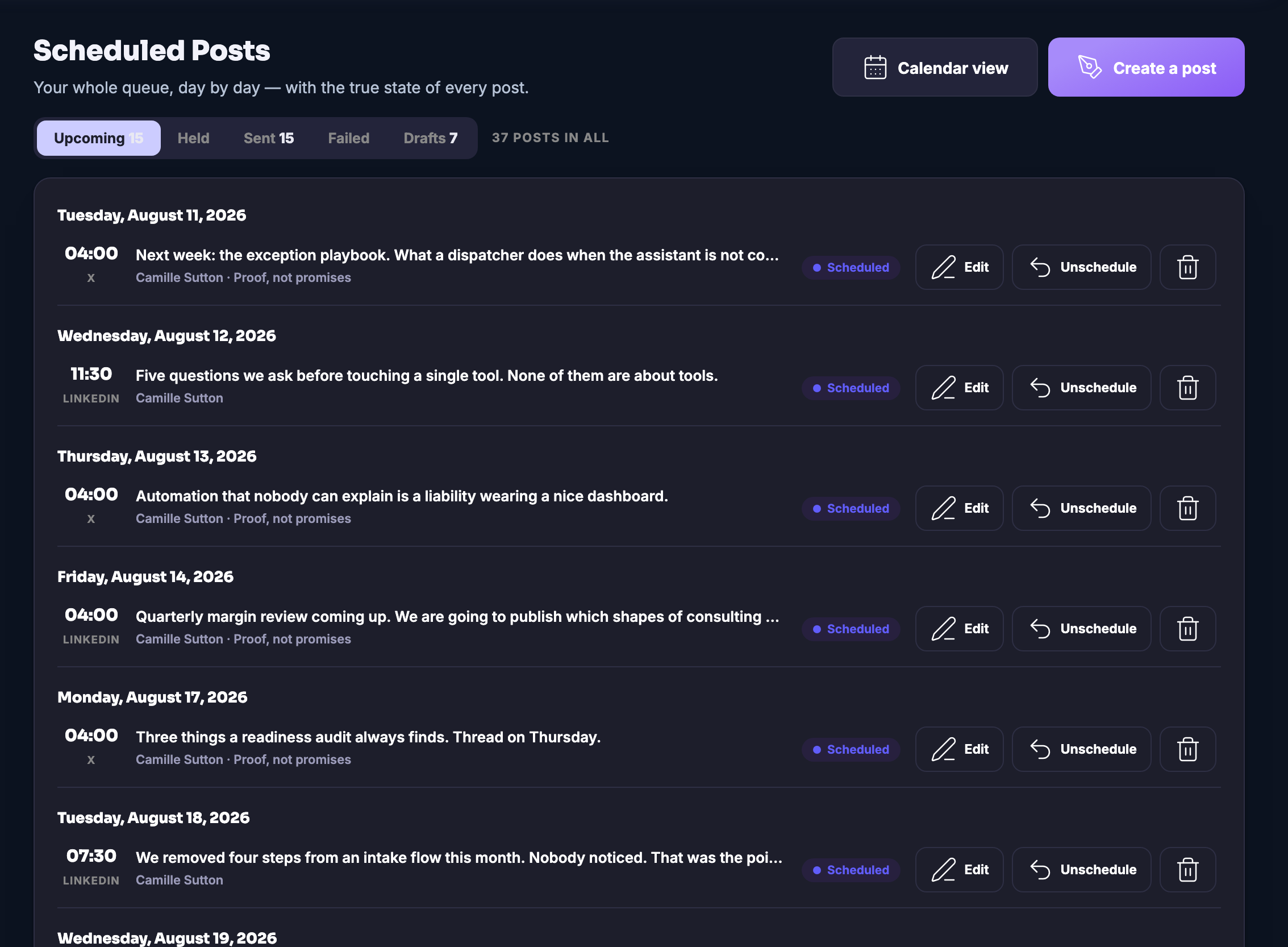
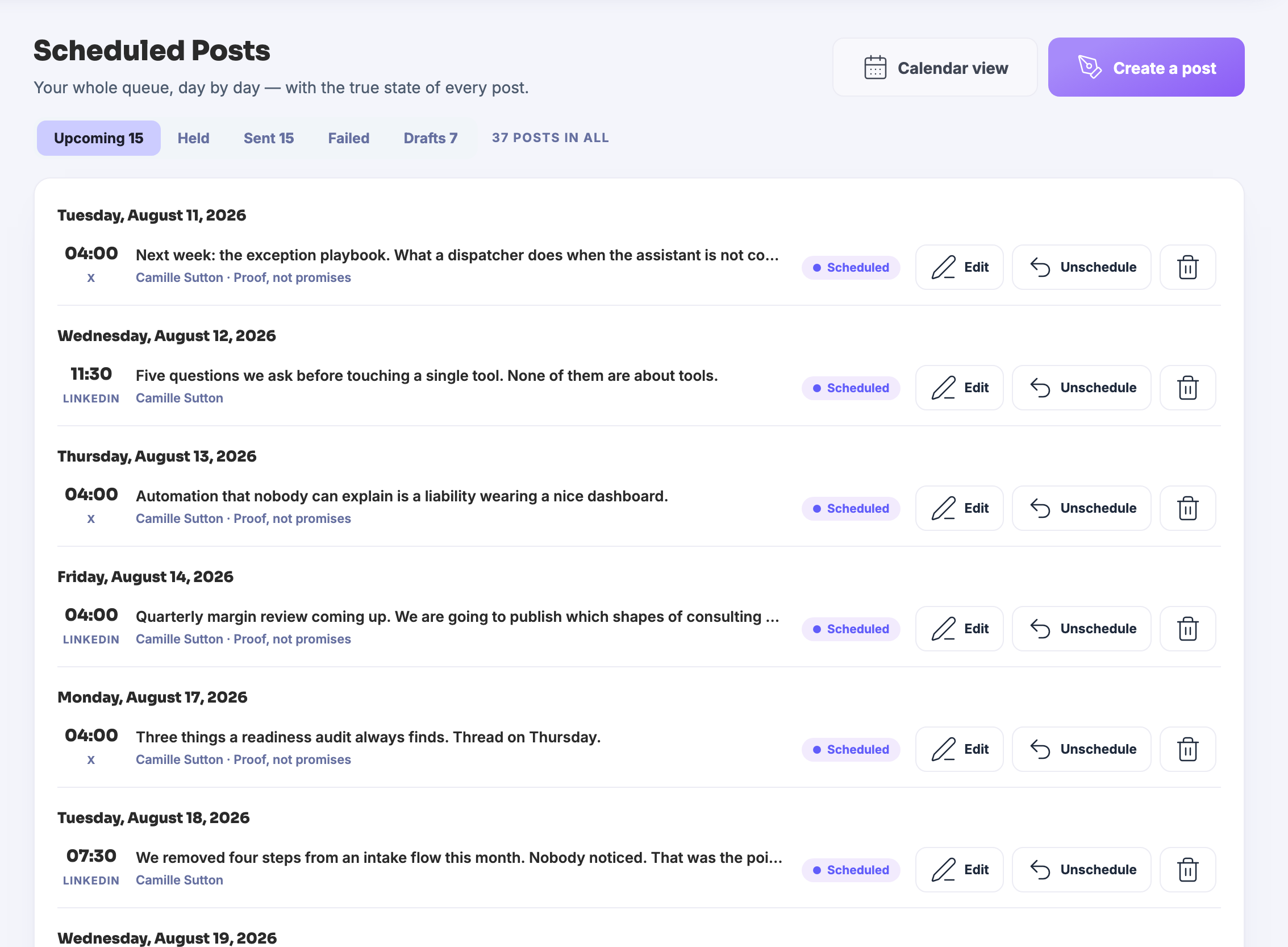
The Scheduled Posts queue: a heading saying this is your whole queue, day by day, with the true state of every post, and beside it a control that opens the same queue as a calendar and one that starts a new post. Under it the states a post can be in — upcoming, held, sent, failed and drafted — each carrying its own count, with the upcoming list showing, and a line saying how many posts there are altogether. Then the queue itself: a heading for each day, in date order, and under it the posts set against that day, each with the time it goes out, the opening words of what it says, the account it goes from, the campaign it belongs to where it has one, the state it is in, and three controls beside it — edit it, take it back out of the queue, or delete it. The list runs on past the bottom edge of the frame. Down the left the Marketing panel this queue is filed under: the automation centre and workflows, the social dashboard, then writing a post, posting in bulk, the blog studio and repurposing, then the calendar, the planner and the campaigns, and under Ship the scheduled posts themselves and the record of what went out, with scheduled posts marked as where you are.The Scheduled Posts queue: a heading saying this is your whole queue, day by day, with the true state of every post, and beside it a control that opens the same queue as a calendar and one that starts a new post. Under it the states a post can be in — upcoming, held, sent, failed and drafted — each carrying its own count, with the upcoming list showing, and a line saying how many posts there are altogether. Then the queue itself: a heading for each day, in date order, and under it the posts set against that day, each with the time it goes out, the opening words of what it says, the account it goes from, the campaign it belongs to where it has one, the state it is in, and three controls beside it — edit it, take it back out of the queue, or delete it. The list runs on past the bottom edge of the frame. Down the left the Marketing panel this queue is filed under: the automation centre and workflows, the social dashboard, then writing a post, posting in bulk, the blog studio and repurposing, then the calendar, the planner and the campaigns, and under Ship the scheduled posts themselves and the record of what went out, with scheduled posts marked as where you are.
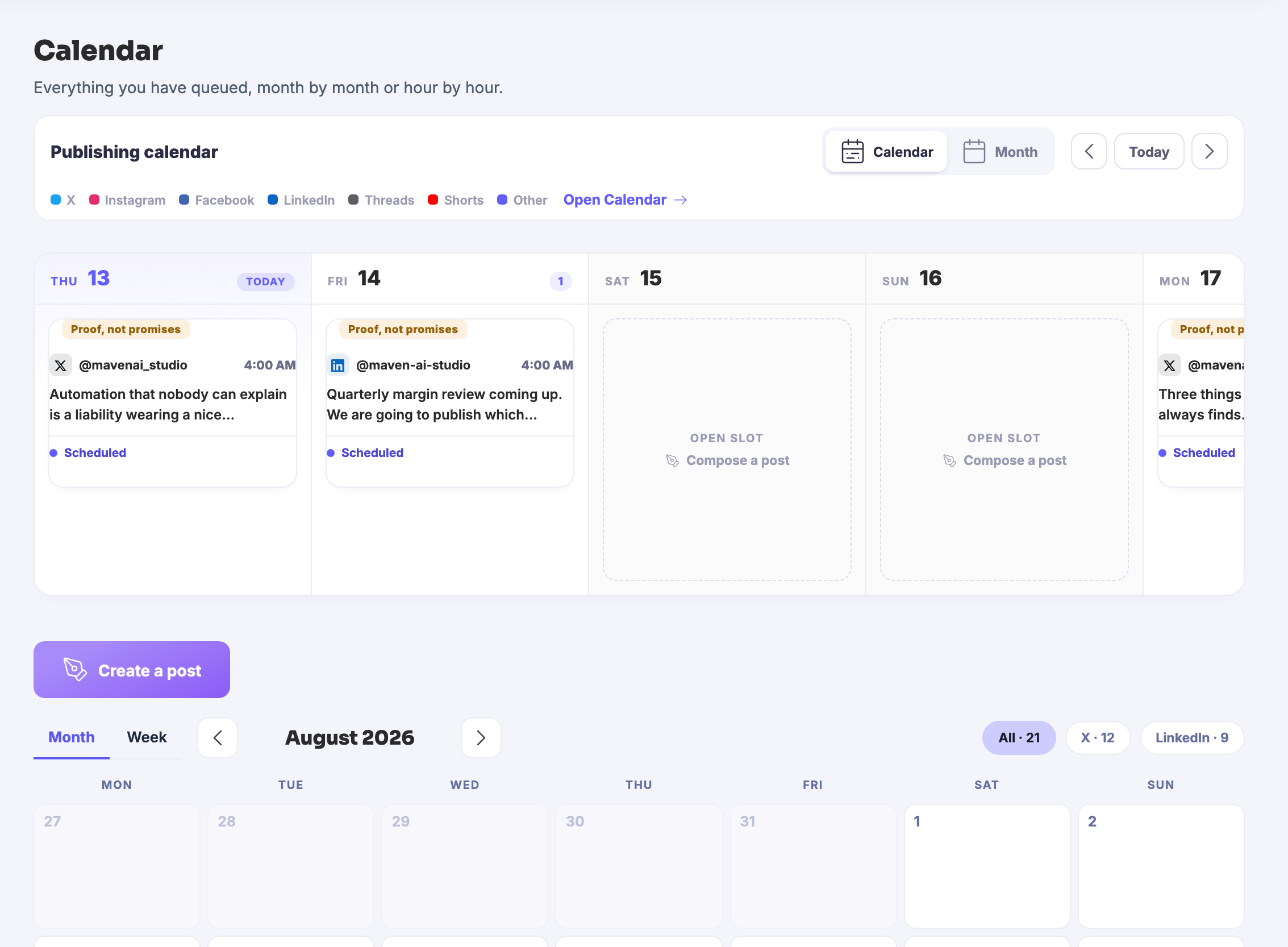
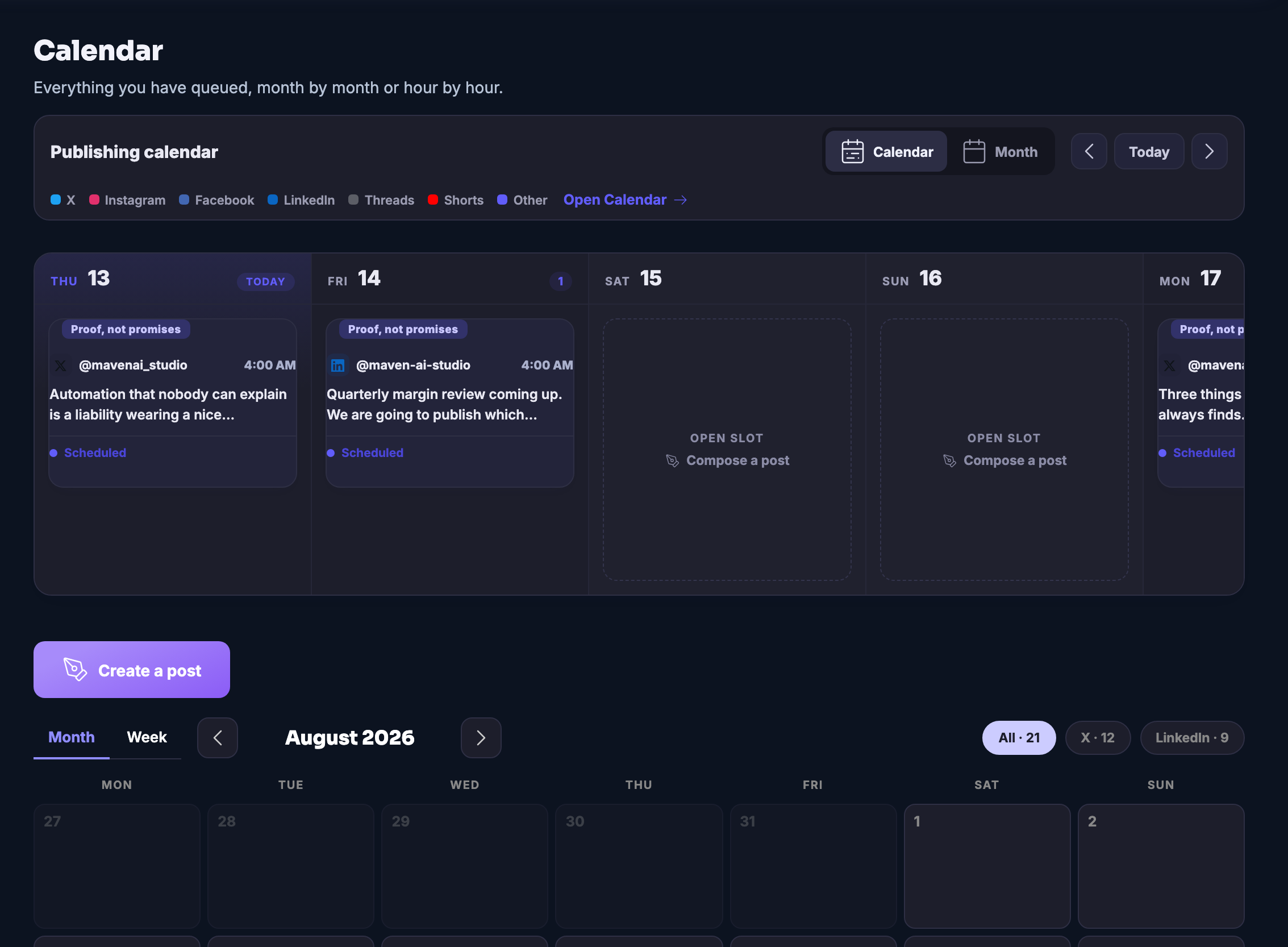
The publishing calendar: a heading saying this is everything you have queued, month by month or hour by hour, and under it a week strip with a control that switches it between the week and the month, a way back to today, and arrows for stepping either way. Along the top of the strip the kinds of place a post can go, each as a small coloured dot beside its name. Then the days themselves, side by side: the first two each hold a queued post showing the campaign it belongs to, the account it goes from, the time, the opening words of what it says and the state it is in; the next two are open, each offering to have a post written into them; and the fifth is cut by the right-hand edge of the frame. Beneath the strip a control for writing a post, and under that the whole month laid out as a grid with the weeks running down and the days across, and filters that show every queued piece or only those going to one place.The publishing calendar: a heading saying this is everything you have queued, month by month or hour by hour, and under it a week strip with a control that switches it between the week and the month, a way back to today, and arrows for stepping either way. Along the top of the strip the kinds of place a post can go, each as a small coloured dot beside its name. Then the days themselves, side by side: the first two each hold a queued post showing the campaign it belongs to, the account it goes from, the time, the opening words of what it says and the state it is in; the next two are open, each offering to have a post written into them; and the fifth is cut by the right-hand edge of the frame. Beneath the strip a control for writing a post, and under that the whole month laid out as a grid with the weeks running down and the days across, and filters that show every queued piece or only those going to one place.

예약된 게시물

닫기
The Scheduled Posts queue: a heading saying this is your whole queue, day by day, with the true state of every post, and beside it a control that opens the same queue as a calendar and one that starts a new post. Under it the states a post can be in — upcoming, held, sent, failed and drafted — each carrying its own count, with the upcoming list showing, and a line saying how many posts there are altogether. Then the queue itself: a heading for each day, in date order, and under it the posts set against that day, each with the time it goes out, the opening words of what it says, the account it goes from, the campaign it belongs to where it has one, the state it is in, and three controls beside it — edit it, take it back out of the queue, or delete it. The list runs on past the bottom edge of the frame. Down the left the Marketing panel this queue is filed under: the automation centre and workflows, the social dashboard, then writing a post, posting in bulk, the blog studio and repurposing, then the calendar, the planner and the campaigns, and under Ship the scheduled posts themselves and the record of what went out, with scheduled posts marked as where you are.The Scheduled Posts queue: a heading saying this is your whole queue, day by day, with the true state of every post, and beside it a control that opens the same queue as a calendar and one that starts a new post. Under it the states a post can be in — upcoming, held, sent, failed and drafted — each carrying its own count, with the upcoming list showing, and a line saying how many posts there are altogether. Then the queue itself: a heading for each day, in date order, and under it the posts set against that day, each with the time it goes out, the opening words of what it says, the account it goes from, the campaign it belongs to where it has one, the state it is in, and three controls beside it — edit it, take it back out of the queue, or delete it. The list runs on past the bottom edge of the frame. Down the left the Marketing panel this queue is filed under: the automation centre and workflows, the social dashboard, then writing a post, posting in bulk, the blog studio and repurposing, then the calendar, the planner and the campaigns, and under Ship the scheduled posts themselves and the record of what went out, with scheduled posts marked as where you are.

예약된 게시물

닫기
The publishing calendar: a heading saying this is everything you have queued, month by month or hour by hour, and under it a week strip with a control that switches it between the week and the month, a way back to today, and arrows for stepping either way. Along the top of the strip the kinds of place a post can go, each as a small coloured dot beside its name. Then the days themselves, side by side: the first two each hold a queued post showing the campaign it belongs to, the account it goes from, the time, the opening words of what it says and the state it is in; the next two are open, each offering to have a post written into them; and the fifth is cut by the right-hand edge of the frame. Beneath the strip a control for writing a post, and under that the whole month laid out as a grid with the weeks running down and the days across, and filters that show every queued piece or only those going to one place.The publishing calendar: a heading saying this is everything you have queued, month by month or hour by hour, and under it a week strip with a control that switches it between the week and the month, a way back to today, and arrows for stepping either way. Along the top of the strip the kinds of place a post can go, each as a small coloured dot beside its name. Then the days themselves, side by side: the first two each hold a queued post showing the campaign it belongs to, the account it goes from, the time, the opening words of what it says and the state it is in; the next two are open, each offering to have a post written into them; and the fifth is cut by the right-hand edge of the frame. Beneath the strip a control for writing a post, and under that the whole month laid out as a grid with the weeks running down and the days across, and filters that show every queued piece or only those going to one place.

A look inside Scheduled Posts

Stills from the product, one after the next.

The Scheduled Posts queue: a heading saying this is your whole queue, day by day, with the true state of every post, and beside it a control that opens the same queue as a calendar and one that starts a new post. Under it the states a post can be in — upcoming, held, sent, failed and drafted — each carrying its own count, with the upcoming list showing, and a line saying how many posts there are altogether. Then the queue itself: a heading for each day, in date order, and under it the posts set against that day, each with the time it goes out, the opening words of what it says, the account it goes from, the campaign it belongs to where it has one, the state it is in, and three controls beside it — edit it, take it back out of the queue, or delete it. The list runs on past the bottom edge of the frame. Down the left the Marketing panel this queue is filed under: the automation centre and workflows, the social dashboard, then writing a post, posting in bulk, the blog studio and repurposing, then the calendar, the planner and the campaigns, and under Ship the scheduled posts themselves and the record of what went out, with scheduled posts marked as where you are.The Scheduled Posts queue: a heading saying this is your whole queue, day by day, with the true state of every post, and beside it a control that opens the same queue as a calendar and one that starts a new post. Under it the states a post can be in — upcoming, held, sent, failed and drafted — each carrying its own count, with the upcoming list showing, and a line saying how many posts there are altogether. Then the queue itself: a heading for each day, in date order, and under it the posts set against that day, each with the time it goes out, the opening words of what it says, the account it goes from, the campaign it belongs to where it has one, the state it is in, and three controls beside it — edit it, take it back out of the queue, or delete it. The list runs on past the bottom edge of the frame. Down the left the Marketing panel this queue is filed under: the automation centre and workflows, the social dashboard, then writing a post, posting in bulk, the blog studio and repurposing, then the calendar, the planner and the campaigns, and under Ship the scheduled posts themselves and the record of what went out, with scheduled posts marked as where you are.
The publishing calendar: a heading saying this is everything you have queued, month by month or hour by hour, and under it a week strip with a control that switches it between the week and the month, a way back to today, and arrows for stepping either way. Along the top of the strip the kinds of place a post can go, each as a small coloured dot beside its name. Then the days themselves, side by side: the first two each hold a queued post showing the campaign it belongs to, the account it goes from, the time, the opening words of what it says and the state it is in; the next two are open, each offering to have a post written into them; and the fifth is cut by the right-hand edge of the frame. Beneath the strip a control for writing a post, and under that the whole month laid out as a grid with the weeks running down and the days across, and filters that show every queued piece or only those going to one place.The publishing calendar: a heading saying this is everything you have queued, month by month or hour by hour, and under it a week strip with a control that switches it between the week and the month, a way back to today, and arrows for stepping either way. Along the top of the strip the kinds of place a post can go, each as a small coloured dot beside its name. Then the days themselves, side by side: the first two each hold a queued post showing the campaign it belongs to, the account it goes from, the time, the opening words of what it says and the state it is in; the next two are open, each offering to have a post written into them; and the fifth is cut by the right-hand edge of the frame. Beneath the strip a control for writing a post, and under that the whole month laid out as a grid with the weeks running down and the days across, and filters that show every queued piece or only those going to one place.

Activity — platform screenshots

Real screens from the product. Open any one full size, or switch the set to light or dark.
닫기
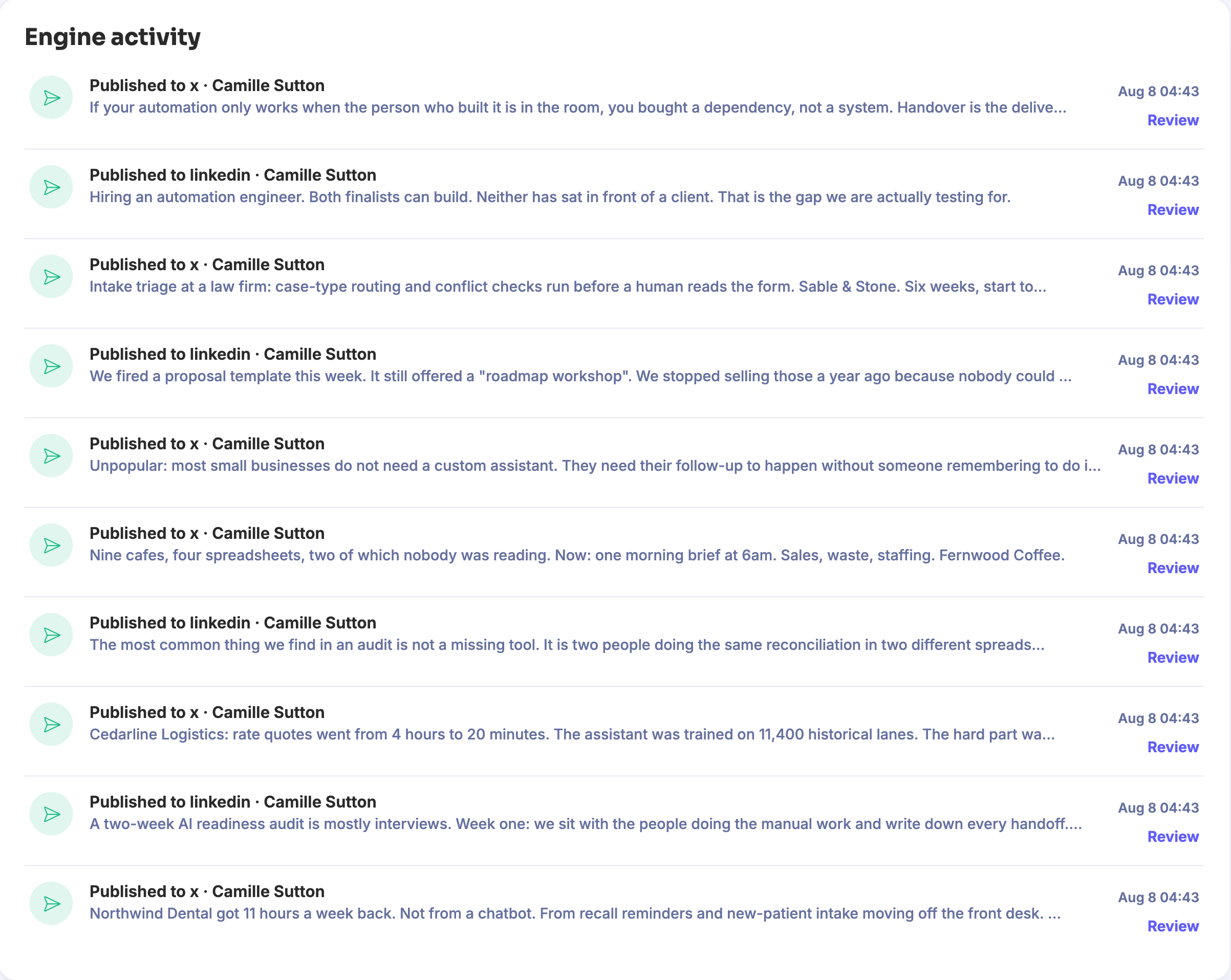
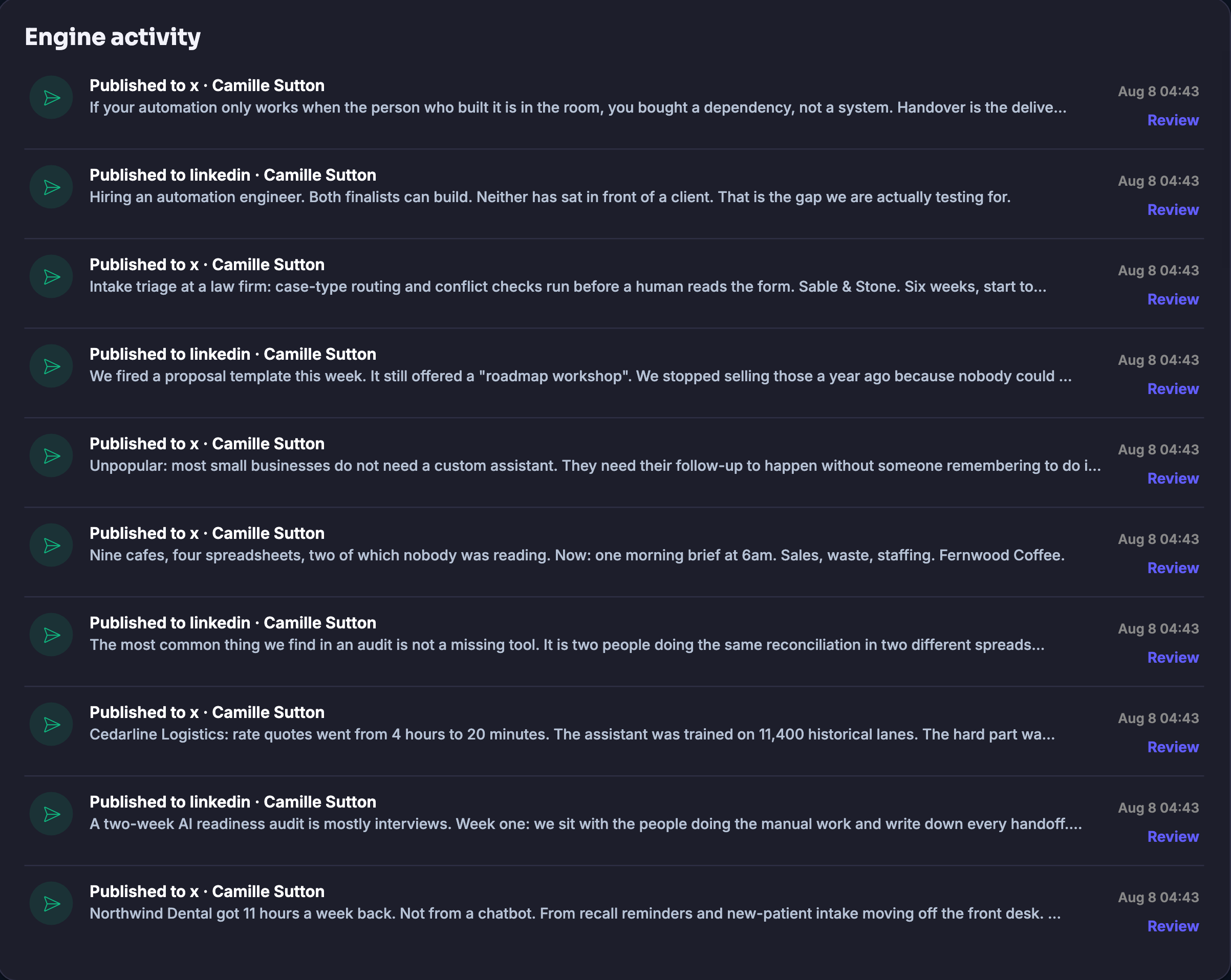
The engine activity panel from the Activity screen. Ten entries run down it, newest first, each one a piece that was published successfully: a headline naming the network it went to and the account it went out under, the opening words of the piece itself underneath, the date and time it went out on the right, and a review control beneath that. Nothing in this picture failed or is waiting, and every entry carries the same timestamp, because the entries come from one seeding run.The engine activity panel from the Activity screen. Ten entries run down it, newest first, each one a piece that was published successfully: a headline naming the network it went to and the account it went out under, the opening words of the piece itself underneath, the date and time it went out on the right, and a review control beneath that. Nothing in this picture failed or is waiting, and every entry carries the same timestamp, because the entries come from one seeding run.

활동

닫기
The engine activity panel from the Activity screen. Ten entries run down it, newest first, each one a piece that was published successfully: a headline naming the network it went to and the account it went out under, the opening words of the piece itself underneath, the date and time it went out on the right, and a review control beneath that. Nothing in this picture failed or is waiting, and every entry carries the same timestamp, because the entries come from one seeding run.The engine activity panel from the Activity screen. Ten entries run down it, newest first, each one a piece that was published successfully: a headline naming the network it went to and the account it went out under, the opening words of the piece itself underneath, the date and time it went out on the right, and a review control beneath that. Nothing in this picture failed or is waiting, and every entry carries the same timestamp, because the entries come from one seeding run.

A look inside Activity

Stills from the product, one after the next.

The engine activity panel from the Activity screen. Ten entries run down it, newest first, each one a piece that was published successfully: a headline naming the network it went to and the account it went out under, the opening words of the piece itself underneath, the date and time it went out on the right, and a review control beneath that. Nothing in this picture failed or is waiting, and every entry carries the same timestamp, because the entries come from one seeding run.The engine activity panel from the Activity screen. Ten entries run down it, newest first, each one a piece that was published successfully: a headline naming the network it went to and the account it went out under, the opening words of the piece itself underneath, the date and time it went out on the right, and a review control beneath that. Nothing in this picture failed or is waiting, and every entry carries the same timestamp, because the entries come from one seeding run.

Content Planner — platform screenshots

Real screens from the product. Open any one full size, or switch the set to light or dark.
닫기
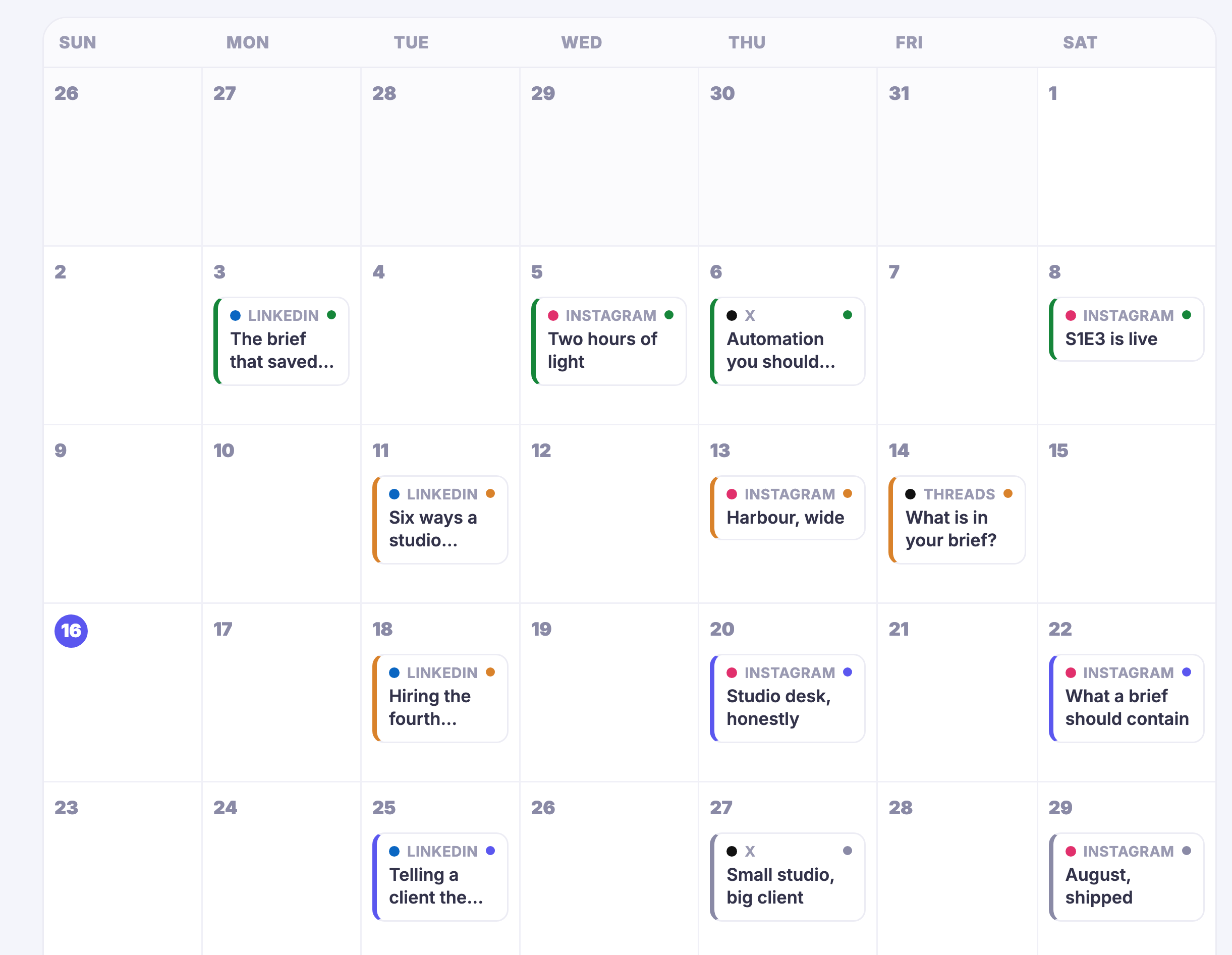
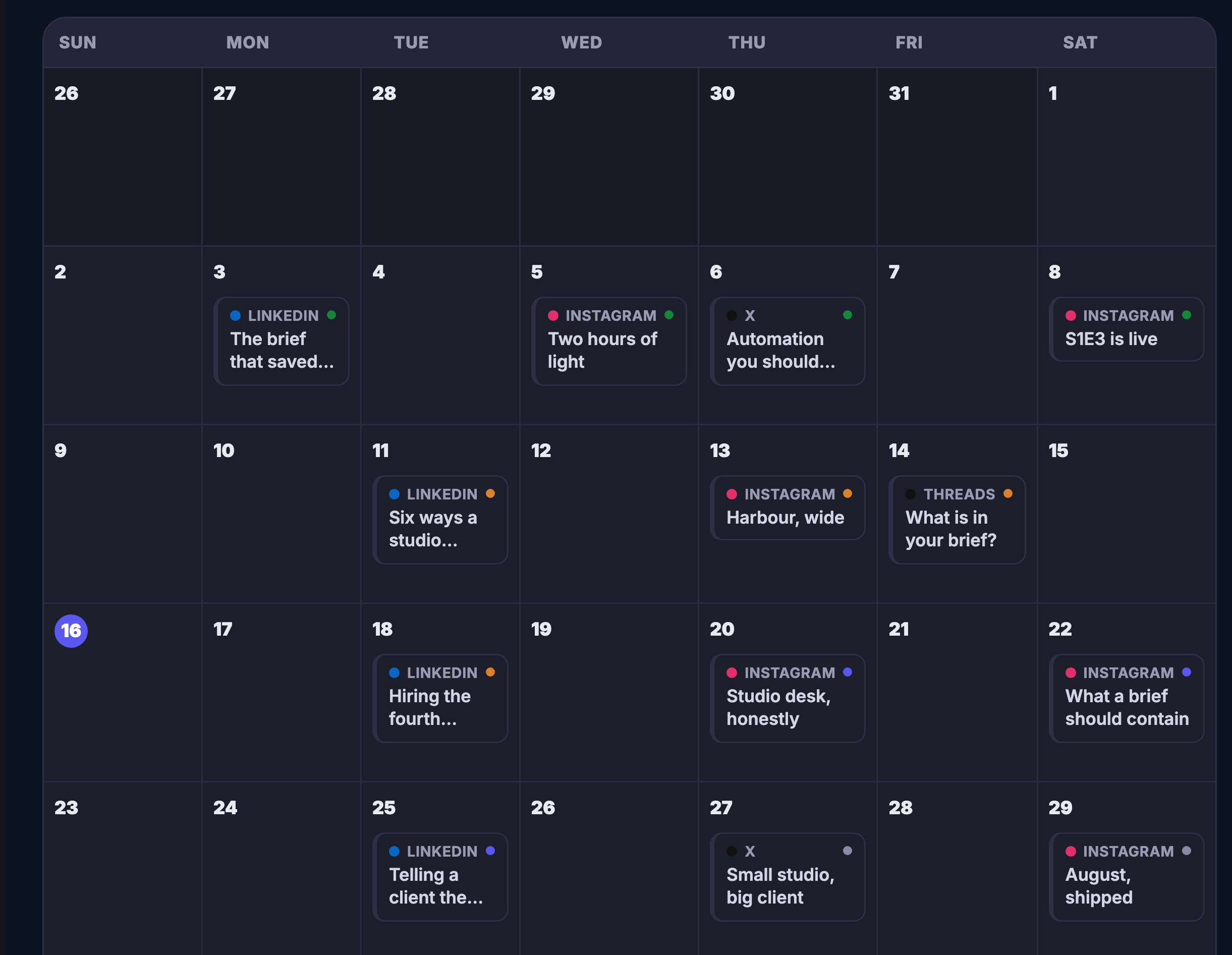
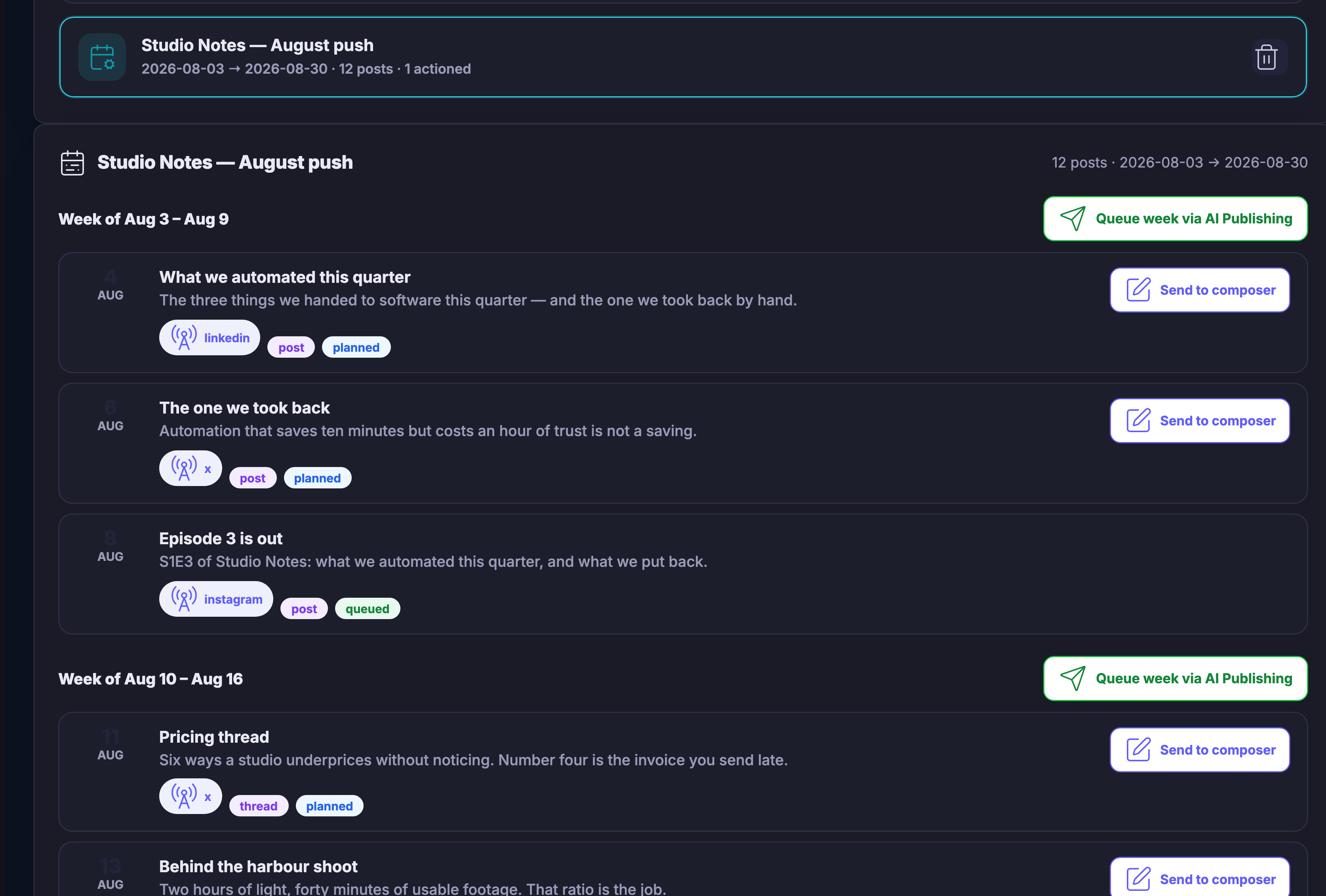
The content planner’s month, laid out as a grid: the days of the week across the top and the weeks running down, each square carrying its date. On the days that have something planned, a small card sits under the date — a coloured bar down its side for the kind of piece it is, the sort of place it is going named in small capitals with a coloured dot beside it, another dot on the right, and under that the opening words of the idea, cut off where the card runs out of room. Today’s date is circled. The days with nothing planned are simply empty. The month opens with a row of the previous month’s last days, all of them empty, and the grid runs on past the bottom edge of the frame.The content planner’s month, laid out as a grid: the days of the week across the top and the weeks running down, each square carrying its date. On the days that have something planned, a small card sits under the date — a coloured bar down its side for the kind of piece it is, the sort of place it is going named in small capitals with a coloured dot beside it, another dot on the right, and under that the opening words of the idea, cut off where the card runs out of room. Today’s date is circled. The days with nothing planned are simply empty. The month opens with a row of the previous month’s last days, all of them empty, and the grid runs on past the bottom edge of the frame.
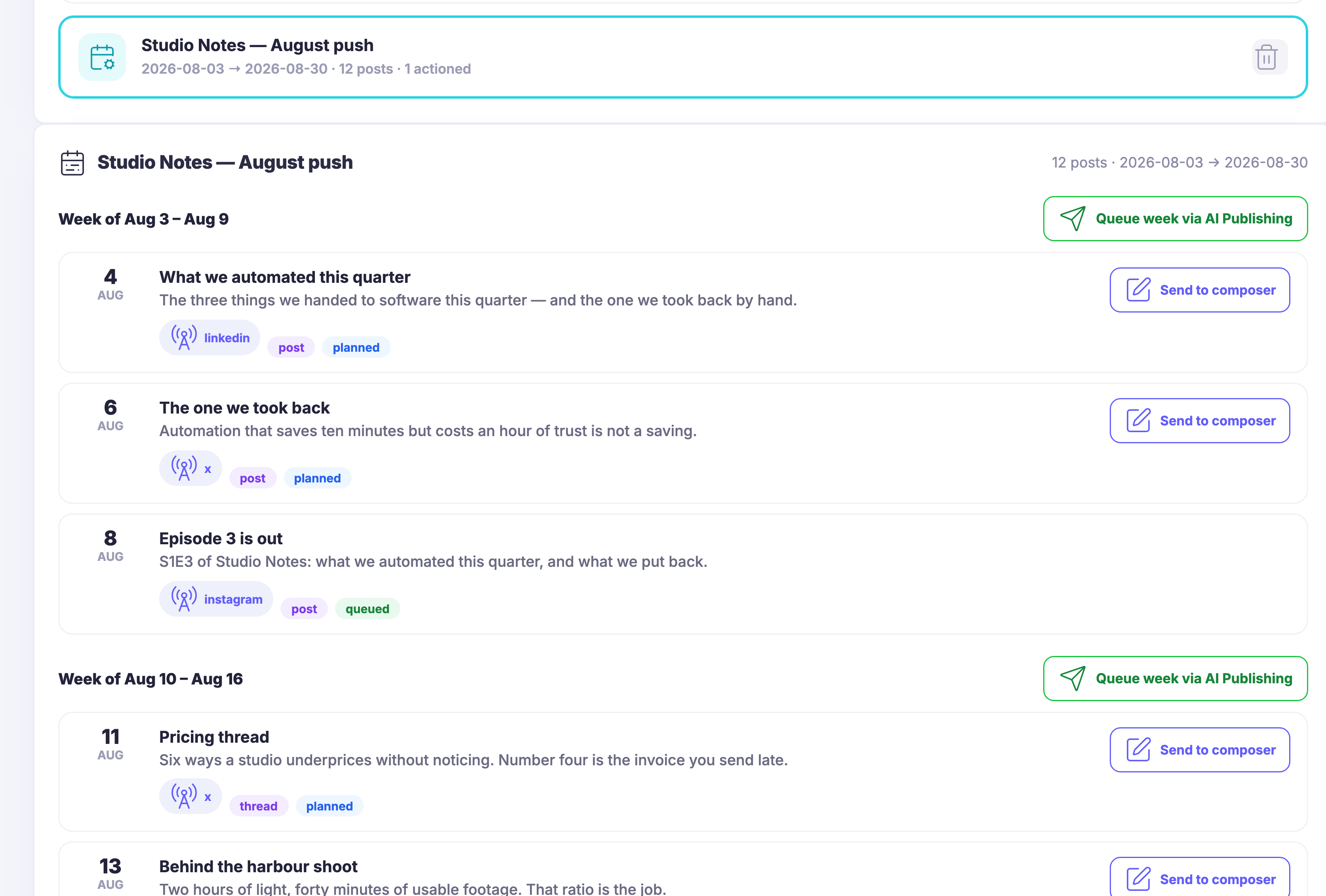
A saved plan opened in the AI planner. At the top the plan itself, picked out and outlined: its name, the two dates it runs between, how many pieces it holds and how many of them have been acted on, with a control to throw it away sitting at the far end. Beneath it the plan laid out in full — the same name again, the dates and the size of it repeated on the right, and then the pieces grouped under the week they fall in, each week heading carrying a control that hands that whole week over to be published. Every piece in a row of its own: the day and the month down the left, the working title, the opening line of the draft underneath it, and then three small pills — the sort of place it is going, the kind of piece it is, and whether it is still only planned or has already gone to the queue. A control to send that piece to the composer sits at the end of each row. The list runs on past the bottom edge of the frame.A saved plan opened in the AI planner. At the top the plan itself, picked out and outlined: its name, the two dates it runs between, how many pieces it holds and how many of them have been acted on, with a control to throw it away sitting at the far end. Beneath it the plan laid out in full — the same name again, the dates and the size of it repeated on the right, and then the pieces grouped under the week they fall in, each week heading carrying a control that hands that whole week over to be published. Every piece in a row of its own: the day and the month down the left, the working title, the opening line of the draft underneath it, and then three small pills — the sort of place it is going, the kind of piece it is, and whether it is still only planned or has already gone to the queue. A control to send that piece to the composer sits at the end of each row. The list runs on past the bottom edge of the frame.

콘텐츠 플래너

닫기
The content planner’s month, laid out as a grid: the days of the week across the top and the weeks running down, each square carrying its date. On the days that have something planned, a small card sits under the date — a coloured bar down its side for the kind of piece it is, the sort of place it is going named in small capitals with a coloured dot beside it, another dot on the right, and under that the opening words of the idea, cut off where the card runs out of room. Today’s date is circled. The days with nothing planned are simply empty. The month opens with a row of the previous month’s last days, all of them empty, and the grid runs on past the bottom edge of the frame.The content planner’s month, laid out as a grid: the days of the week across the top and the weeks running down, each square carrying its date. On the days that have something planned, a small card sits under the date — a coloured bar down its side for the kind of piece it is, the sort of place it is going named in small capitals with a coloured dot beside it, another dot on the right, and under that the opening words of the idea, cut off where the card runs out of room. Today’s date is circled. The days with nothing planned are simply empty. The month opens with a row of the previous month’s last days, all of them empty, and the grid runs on past the bottom edge of the frame.

콘텐츠 플래너

닫기
A saved plan opened in the AI planner. At the top the plan itself, picked out and outlined: its name, the two dates it runs between, how many pieces it holds and how many of them have been acted on, with a control to throw it away sitting at the far end. Beneath it the plan laid out in full — the same name again, the dates and the size of it repeated on the right, and then the pieces grouped under the week they fall in, each week heading carrying a control that hands that whole week over to be published. Every piece in a row of its own: the day and the month down the left, the working title, the opening line of the draft underneath it, and then three small pills — the sort of place it is going, the kind of piece it is, and whether it is still only planned or has already gone to the queue. A control to send that piece to the composer sits at the end of each row. The list runs on past the bottom edge of the frame.A saved plan opened in the AI planner. At the top the plan itself, picked out and outlined: its name, the two dates it runs between, how many pieces it holds and how many of them have been acted on, with a control to throw it away sitting at the far end. Beneath it the plan laid out in full — the same name again, the dates and the size of it repeated on the right, and then the pieces grouped under the week they fall in, each week heading carrying a control that hands that whole week over to be published. Every piece in a row of its own: the day and the month down the left, the working title, the opening line of the draft underneath it, and then three small pills — the sort of place it is going, the kind of piece it is, and whether it is still only planned or has already gone to the queue. A control to send that piece to the composer sits at the end of each row. The list runs on past the bottom edge of the frame.

A look inside Content Planner

Stills from the product, one after the next.

The content planner’s month, laid out as a grid: the days of the week across the top and the weeks running down, each square carrying its date. On the days that have something planned, a small card sits under the date — a coloured bar down its side for the kind of piece it is, the sort of place it is going named in small capitals with a coloured dot beside it, another dot on the right, and under that the opening words of the idea, cut off where the card runs out of room. Today’s date is circled. The days with nothing planned are simply empty. The month opens with a row of the previous month’s last days, all of them empty, and the grid runs on past the bottom edge of the frame.The content planner’s month, laid out as a grid: the days of the week across the top and the weeks running down, each square carrying its date. On the days that have something planned, a small card sits under the date — a coloured bar down its side for the kind of piece it is, the sort of place it is going named in small capitals with a coloured dot beside it, another dot on the right, and under that the opening words of the idea, cut off where the card runs out of room. Today’s date is circled. The days with nothing planned are simply empty. The month opens with a row of the previous month’s last days, all of them empty, and the grid runs on past the bottom edge of the frame.
A saved plan opened in the AI planner. At the top the plan itself, picked out and outlined: its name, the two dates it runs between, how many pieces it holds and how many of them have been acted on, with a control to throw it away sitting at the far end. Beneath it the plan laid out in full — the same name again, the dates and the size of it repeated on the right, and then the pieces grouped under the week they fall in, each week heading carrying a control that hands that whole week over to be published. Every piece in a row of its own: the day and the month down the left, the working title, the opening line of the draft underneath it, and then three small pills — the sort of place it is going, the kind of piece it is, and whether it is still only planned or has already gone to the queue. A control to send that piece to the composer sits at the end of each row. The list runs on past the bottom edge of the frame.A saved plan opened in the AI planner. At the top the plan itself, picked out and outlined: its name, the two dates it runs between, how many pieces it holds and how many of them have been acted on, with a control to throw it away sitting at the far end. Beneath it the plan laid out in full — the same name again, the dates and the size of it repeated on the right, and then the pieces grouped under the week they fall in, each week heading carrying a control that hands that whole week over to be published. Every piece in a row of its own: the day and the month down the left, the working title, the opening line of the draft underneath it, and then three small pills — the sort of place it is going, the kind of piece it is, and whether it is still only planned or has already gone to the queue. A control to send that piece to the composer sits at the end of each row. The list runs on past the bottom edge of the frame.

Maven adds this one: the week you meant to have is the one sitting in the queue, not the one in your head.

예약된 게시물

Everything waiting to go out, day by day, with the true state of every piece.

The whole queue, in date orderEvery piece waiting to go out, grouped under the day it goes, with its time beside it. The gaps are as easy to read as the entries — an empty Thursday looks like an empty Thursday.
The state is the truth, not the intentionWaiting, held, sent, failed and drafted are five separate states, and a piece sits in exactly one. Nothing is described as scheduled once it has already gone, or as sent when it never left.
Change it from where you are reading itEdit the wording, pull a piece back out of the queue, or open the same week as a calendar — without leaving the list or hunting for the post in another screen.
Read more about Scheduled Posts

The week you meant to have is the one sitting in the queue.

A queue is only useful if it tells the truth. This one keeps waiting, held, sent, failed and drafted as five separate states, and a piece of writing sits in exactly one of them. Nothing is still described as scheduled after it has gone, and nothing is described as sent when it never left the building.

It is grouped by the day it goes out rather than by the day it was written, which is what makes the gaps visible. An empty Thursday looks like an empty Thursday, and a week with everything crowded into one morning looks like that too — before it happens, while it is still free to move.

The same week reads as a calendar when the shape matters more than the list: which places you are showing up in, how far apart, and where the open slots are. It is the same queue underneath, so a piece moved in one is moved in the other.

And it is editable from where you are reading it. Change the wording, pull something back out, or let it go — without opening another screen to find the piece you were already looking at.

What it actually does

  • The whole queue in the order it goes out
  • Five true states, one to a piece
  • The same week as a list or as a calendar

What that changes for you

  • You can see the empty days while they are still free to fill
  • Nothing is described as sent when it never left
  • Changing a piece does not mean finding it again somewhere else

You come away with a fortnight already written, spaced out and waiting its turn.

A look inside Scheduled Posts

The month · A brief in, a dated month out

Plan the month, not the morning.

Give Content Planner one sentence about the month ahead. It comes back dated: the launch week full, the quiet week left honestly quiet, every chip a draft waiting on the same approval as the rest.

THE BRIEF MONTUEWEDTHUFRISATSUN WEEK THREE STAYS QUIET · ON PURPOSE

Because you said I reach nobody yet.

콘텐츠 플래너

The month decided while you have the time — one ongoing calendar of what you are going to say, sitting on the days you are going to say it.

One calendar, and the month is on itEvery piece you have planned sits on the day you meant it for, carrying the idea in your own words, a colour for the kind of thing it is, and the sort of place it is going. It is one ongoing calendar rather than a fresh blank one every month, so last month’s thinking is still there when you plan the next.
The quiet weeks look quietA day with nothing on it is an empty square offering to be filled. The shape of the month — the week where everything crowds together and the week where nothing happens — is visible while all of it is still free to move.
A brief in, a dated month outSay what the stretch is about and what you want it to do, and the planner comes back with the month drafted: a title and an opening line for each slot, the kind of piece it should be, the day it belongs on. Every one of them waits for you — you send a slot to the composer to finish it, or hand a whole week over at once.
Read more about Content Planner

The month decided in one sitting, while you still have the sitting.

Posting in bursts and then vanishing is not a strategy. It is what happens when the plan lives in somebody’s head and the week gets busy. The planner moves the plan somewhere better: one ongoing calendar of what you intend to say, with each intention sitting on the day you meant it for.

A grid is honest in a way a list is not. A day with something planned shows what it is; a day with nothing offers you the space. Spacing the message out stops being arithmetic you do in your head and becomes something you can see — and the gap in the middle of the month is visible to you long before it is visible to anybody else.

The hardest part of showing up was never the writing. It is deciding, every single day, what the thing should be. So you can hand that decision over once: say what the stretch is about, what you want out of it and how often you want to appear, and the month comes back drafted — a title, an opening line, the kind of piece, the day. Each run is kept as its own plan, so the thinking behind last month is still readable when you sit down to do the next one.

And a plan is a proposal until you say otherwise. Nothing in it goes anywhere on its own. You open a slot and send it to the composer to make it yours, or you hand a whole week across in one motion — and only then does any of it become something waiting to go out.

What it actually does

  • One ongoing calendar, a whole month in view
  • Every empty day offering to be filled
  • A written brief turned into a dated month of drafts

What that changes for you

  • Deciding what to say stops being a job you do daily
  • A silent fortnight is visible while you can still fill it
  • The month happens even on the weeks you are busy

You come away with a month of posts decided in one sitting.

A look inside Content Planner

Every destination, one hub

Your channels, connected.

Connect each account once. After that the hub is the only place you write, and every spoke is a room your story already knows how to enter. The bright spoke is a channel that is connected; the rest wait until you are ready for them.

Maven adds this one: every other publishing screen tells you what is meant to happen — this is the one that says what did.

활동

One line for every piece that has actually gone out — where it went, when it went, the words it opened with, and a way straight back to it.

A record, not a planThe calendar and the queue both describe intent. This screen is written after the fact, one line at a time, as each piece actually leaves — so “did that go out?” stops being a question you answer by guessing.
Every line says where it landedEach entry names the place it was published to, so a piece sent to more than one audience appears once for each, and a whole run reads top to bottom without opening anything.
Straight back to the pieceEvery line carries the opening words of what went out and its own control to go and look at it, so checking a post is reading a line rather than hunting for it.
Read more about Activity

Publishing is the one part of the week you cannot check by looking at the plan — you have to know what actually left the building.

Everything else in this workspace is written before the fact. The planner decides what the weeks are about, the calendar puts pieces on days, the queue holds what is going next. All of it is intent, and intent is not evidence. This screen is the other half: it is written as things happen, one line per piece, and it is the only place that can tell you a thing is genuinely out rather than genuinely scheduled.

Each line is built to be read without opening it. The headline says where the piece went, so a run that fanned out across several audiences reads as several lines and you can see the shape of it immediately. Under that sit the opening words of the piece itself, which is almost always enough to recognise it, and beside it the moment it went. Reading the week’s publishing becomes reading a list, top to bottom, instead of opening things one at a time to find out which is which.

And because it is a record of attempts rather than a list of wins, it is also where the awkward cases surface: the product keeps every attempt, every delivery and every hold on this same timeline, so something that did not go — or has been held back — sits in the run where you will actually see it, next to a control that takes you to it. The shipped picture above is a clean run, with nothing held and nothing failed.

What it actually does

  • Writes one line per piece as it actually goes out, newest first
  • Names the place each piece was published to, on the line itself
  • Carries the opening words of every piece, and a control back to it

What that changes for you

  • “Did that actually go out?” has a screen for an answer
  • A week of publishing reads as one list instead of many open tabs
  • The record is written as it happens, so nobody has to remember it

You come away with a written record of everything you have actually published, and where each piece went.

A look inside Activity

Sunday evening · What actually went out

"Did that go out?" stops being a question you answer by guessing.

Activity is the receipt for the week: one row per piece, the room it went to, the time it left, the first line it opened with. The newest is at the top. Read it on Sunday and the loop is closed, back to the week you decided on Thursday.

ACTIVITY · THIS WEEK SUN · 6:00 PM SAT · 11:30 AM FRI · 9:00 AM THU · 8:12 AM EVERYTHING ABOVE WAS APPROVED BY YOU BACK TO THE WEEK

Maven adds this one: the post, the letter and the landing page were always one launch — this is the screen where they act like it.

캠페인

Name the push once, and the posts, the sends and the pages that belong to it live under that name — with one row that says how it is going.

One push, one homeA campaign is a named place for everything a launch needs — the social series, the email sends and the landing pages that bring the leads in.
The counts sit on the campaignEach campaign wears its state and its running counts — what is written, what has gone out, what is still waiting its turn — so checking on the push is reading one row.
Write into it, see it in the weekFrom the row itself you compose straight into the campaign, or open it on the calendar and see where each piece of the push lands.
Read more about Campaigns

A launch is never one post — it is a set that has to move together, and this is the screen it moves on.

Name the push and it becomes a place. The social series for it, the letters it sends and the landing pages that catch what it brings in are grouped under the campaign’s name — instead of scattered across tools that do not know they are working on the same launch.

Mid-launch, the question you actually ask is “how is it going” — and this screen answers it without an audit. Each campaign carries its own one-line brief, its state, and the plain counts of what has been written, what has gone out and what is still scheduled. A push that has not started sending says so, in its own row, rather than looking like one that has.

And the row is where the work carries on. Compose straight into the campaign and the new piece belongs to the push from its first word; open the campaign on the calendar and the whole run is laid over your week, each piece where it will land.

What it actually does

  • Groups the posts, email sends and landing pages of one push under a named campaign
  • Carries each campaign’s state and its counts of written, sent and scheduled
  • Composes into the campaign, and shows the whole push on the calendar

What that changes for you

  • “How’s the launch going” has one screen for an answer
  • Everything a push needs lives where the push lives
  • You see the run laid over the week before it happens, not after

You come away with a launch that moves as one thing, and one row that tells you how it is going.

A look inside Campaigns

Social Media Publishing · included

Your brand keeps showing up. You get your week back.

Compose once, approve once, and Scheduled Posts, Content Planner, Activity and your marketing Campaigns do the showing up. A campaign here is a marketing push: a social series, its sends and its pages, followed in one view.

Build your first publishing week Free plan. No card. Nothing publishes without your approval.

Next Up: Lead capture

Forms, funnels and follow-up that turn attention into an audience you own.

Maven에게 질문